 Fathom
Anything to do with files, in one app.
Find words inside any file, even handwriting. Convert, shrink, edit, stamp, sign, redact and organise. Then ask the built-in assistant to do the rest: it talks, watches your screen and can build new tools for you. It runs on your own computer, and you can use it from your phone or tablet too.
Free · Windows, macOS, Linux · Phones and tablets through your browser · Your files stay yours
Find
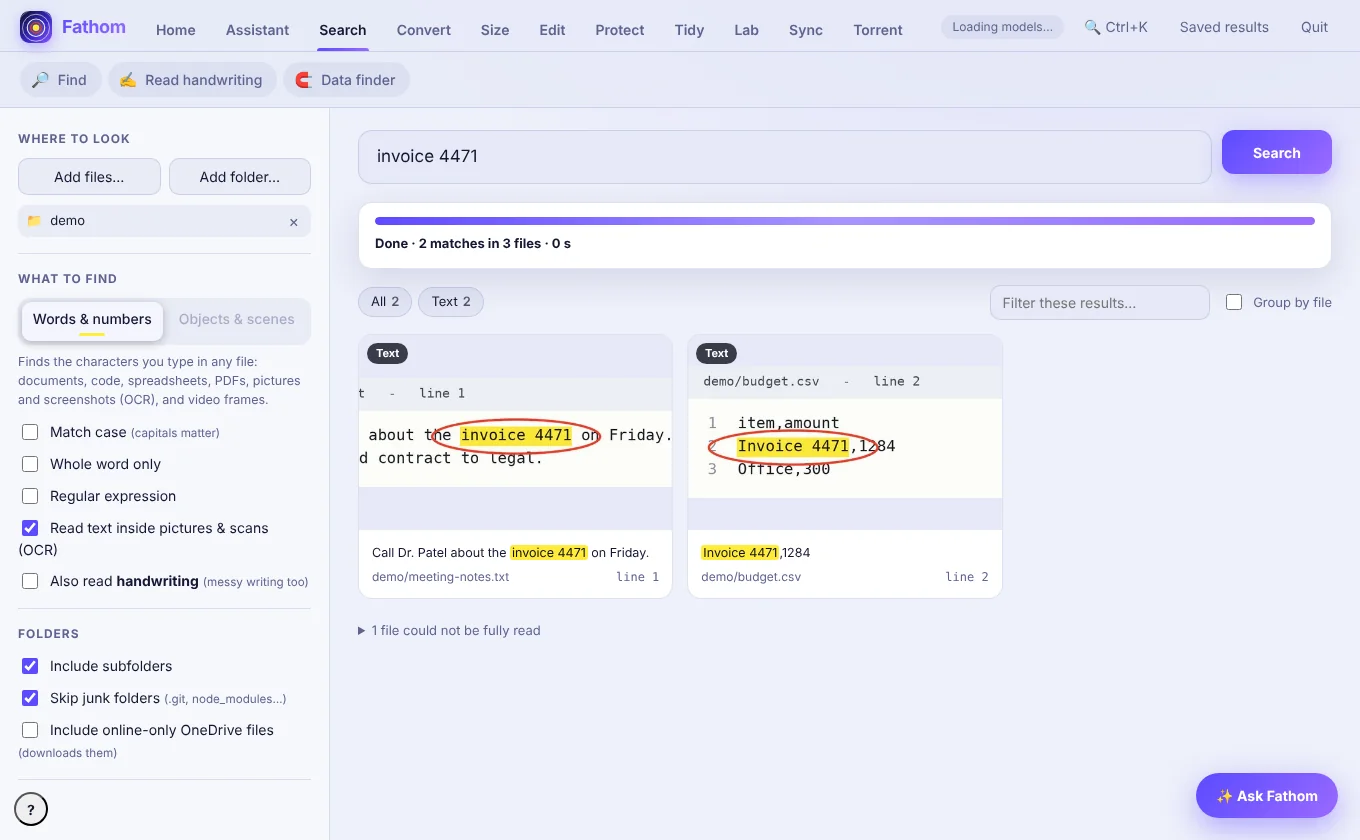
Search “invoice 4471” in PDFs, Word files, pictures, scanned pages, handwriting and video.
12 matches in 5 files · each one highlighted and circled on a proof picture.
Assistant
Illustration of the app window (example text).
Every match, shown and circled
A real screenshot: searching a folder for “invoice 4471” finds it inside a spreadsheet and a text note, highlights it, and shows exactly where.
A look around
Real screenshots from the app. Every tool works the same way: add your files, choose what to do, and your originals stay untouched.
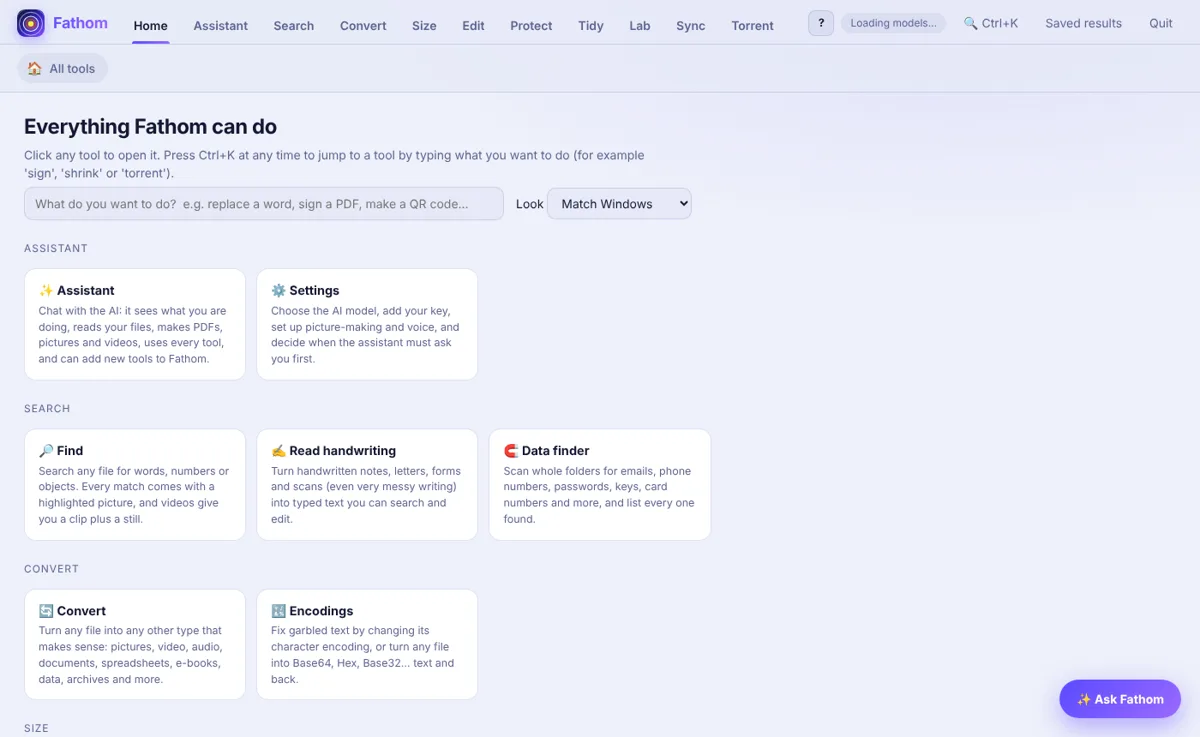
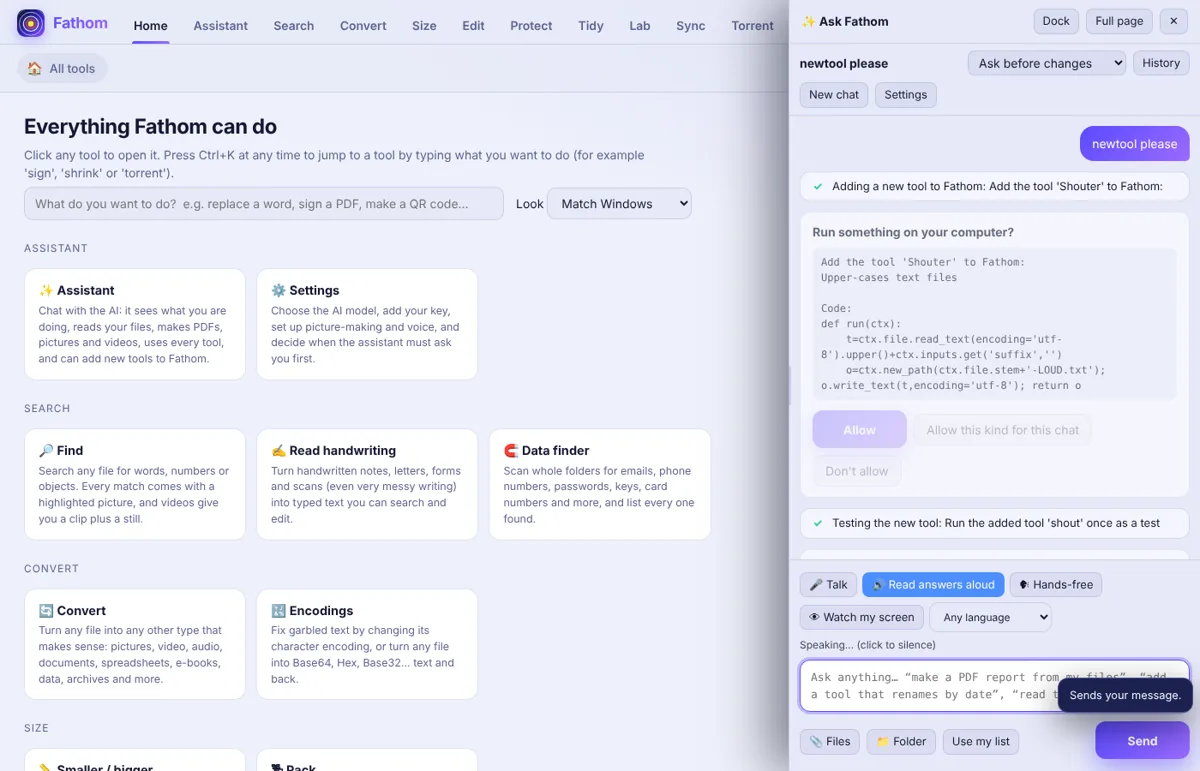
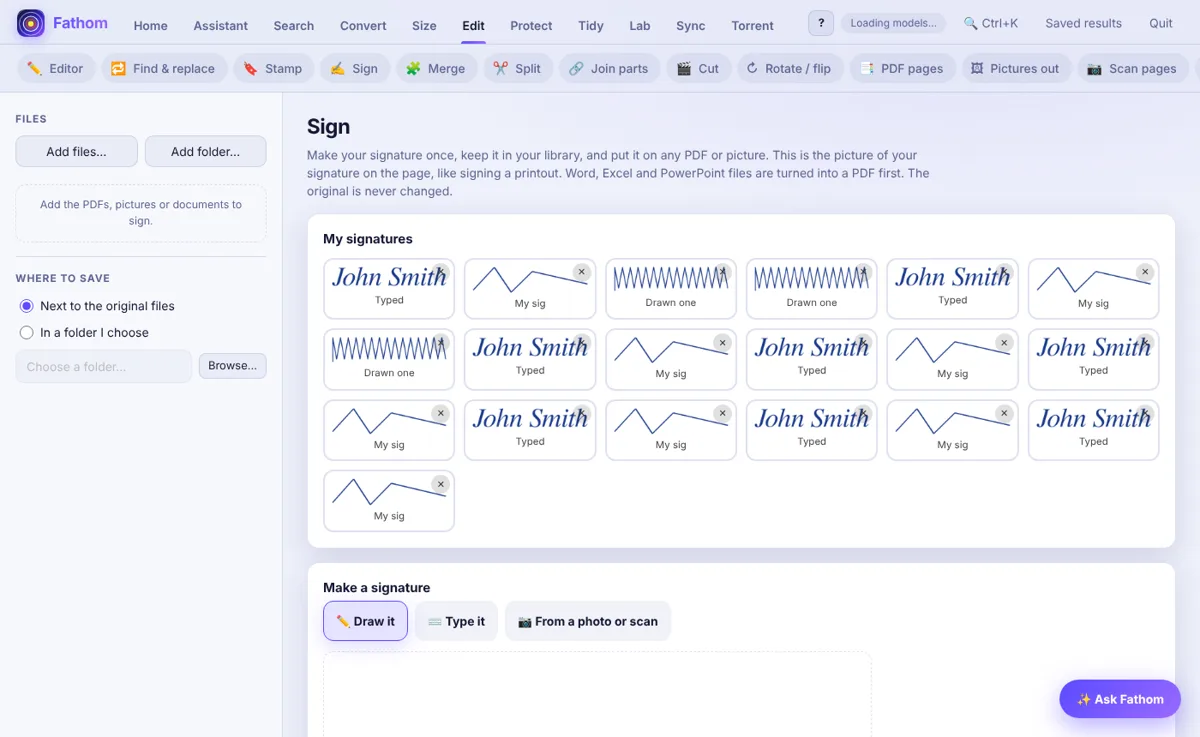
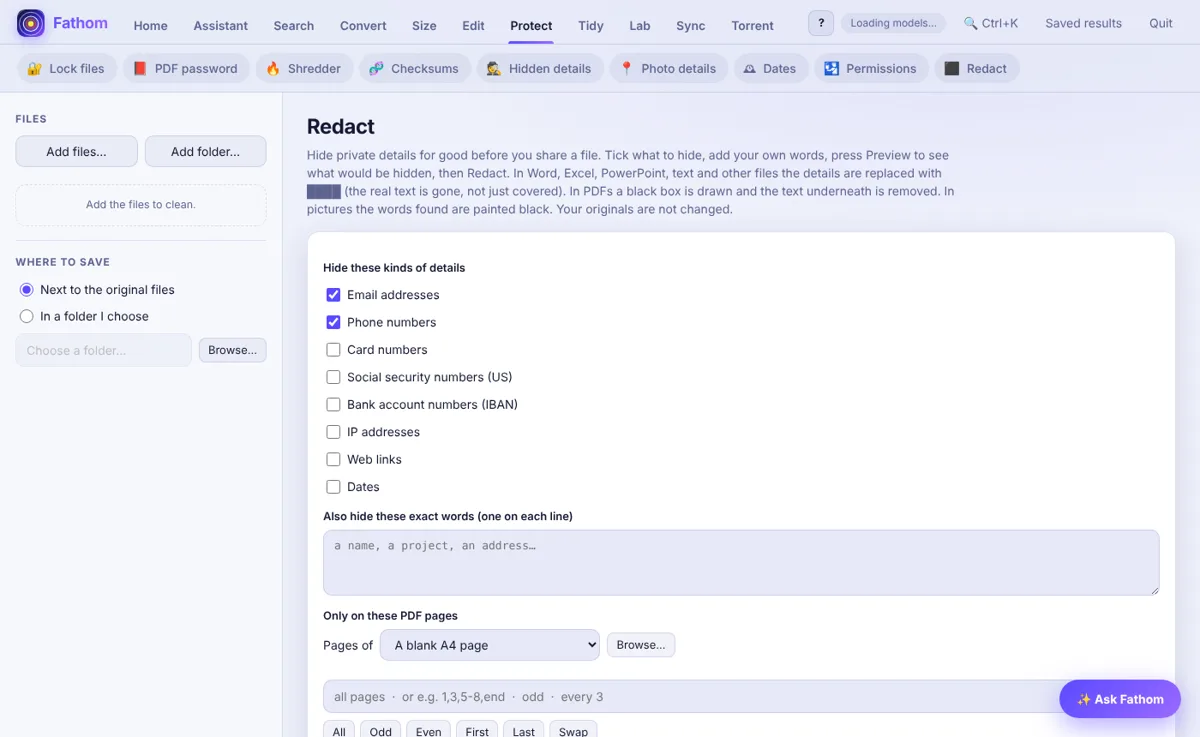
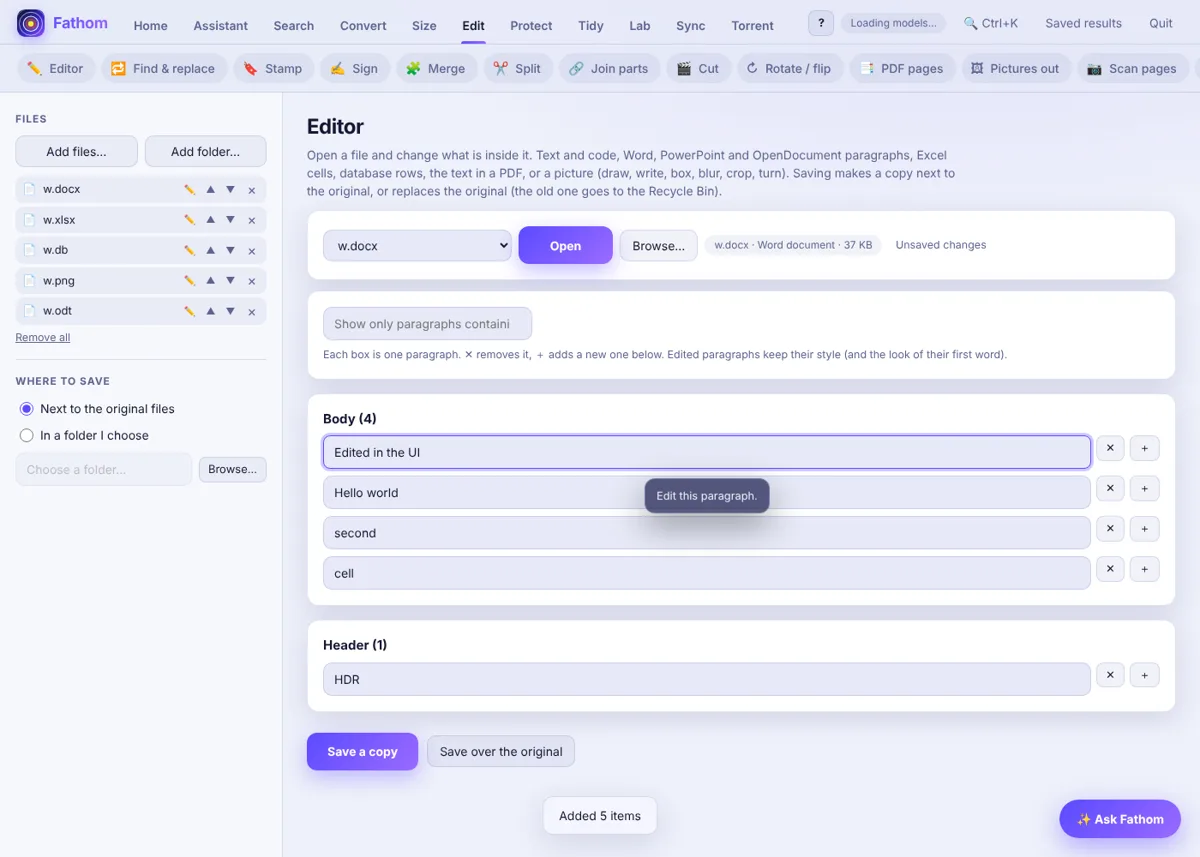
A whole toolbox, with every option explained
Every button and box has a plain-words hover tip. Every tool asks exactly what you want: which files, which pages, where the result goes.
Search inside anything
Six clear choices: words & numbers, words seen in pictures and videos, words spoken in videos and audio, and objects anywhere, in pictures or in videos. Limit it with “Look in” to documents, pictures, videos or audio. Matches are shown on proof pictures.
Convert anything
Pick a file and a target type from one big list: documents, spreadsheets, pictures, audio, video, e-books, archives and more.
Edit, stamp and sign
Edit inside Word, Excel, PDF, pictures and databases. Place stamps and signatures by dragging them on a real page of your own file, on exactly the pages you choose.
Protect and redact
Permanently black out emails, card numbers and names. Lock files with AES-256, set PDF passwords, shred securely, check hashes.
Tidy up
Find duplicates, rename in bulk, organise folders, remove empty ones, compare files, and take any change back with Activity & Undo.
It tells you when to wait
Anything that takes more than a few seconds says so: Please wait, this takes time, how long it has taken and an approximate time left. The same in the setup wizard, so you always know it is working and not stuck.
Lab, Sync, Torrent, Drives
Hex view, recovery, disk images, network sync (SFTP, S3, WebDAV, Android), a torrent client, and drive tools.
Every tool has its own page
Tools are grouped along the top. Add your files once and use them across all of them.
Search
Convert
Size
Edit
Protect
Tidy
Lab
Sync · Torrent · Drives
My tools
An AI that sees what you do and can do anything to a file
- Talk in any language. Press the microphone and speak; it answers in writing and out loud, in your language. Pick the microphone you want in Assistant › Settings.
- Watches your screen when you press the eye button, so it knows what you are doing and what to click. Off until you ask.
- Makes things: PDF, Word, PowerPoint, Excel, charts, designed pictures, narrated videos.
- Runs every Fathom tool for you and shows proof of what changed.
- Builds new tools. Remember a feature you want? Describe it and it appears under “My tools”.
- Asks before it changes anything (you choose how strict), keeps backups, and refuses dangerous commands.
- Free, with no key. The default assistant runs on your own PC through Ollama. Nothing you type leaves your computer.
Free, or your own AI
Free: the setup installs Ollama and a local model, so the assistant works with no key and no bill. Or use Anthropic Claude or any OpenAI-compatible service with your own key; those services charge for their usage. Your key is stored on your PC, protected by Windows. Fathom has no servers and no accounts.
Picture generation and photo-style results need an image service key or a local Stable Diffusion server. Videos are made from pictures, motion and narration.
Your files stay on your computer
Fathom runs on your own computer. It has no cloud, no account and no tracking. The only time anything leaves your PC is when you use the assistant with an online AI service (then the messages and pictures you send it go to that service), or when you use Sync and Torrent.
Originals are safe
Results are new files beside your originals. “Replace the original” sends the old one to the Recycle Bin and keeps a copy for undo.
Proof pictures
Before-and-after images with the change highlighted, so you can see exactly what was done.
Keys stay local
API keys are encrypted with your Windows account and never shown again.
Every computer. Every device with a browser.
Fathom runs on the computer that holds your files. From there you can use it right on that screen, or from any other device through a private link.
Windows 10 / 11
The complete experience, with its own window, scanner support and drive tools.
macOS
Same app, started from Fathom.command. A few Windows-only tools (WIA/TWAIN scanners, NTFS and ReFS drive tools) do not apply.
Linux · Raspberry Pi · ChromeOS (Linux)
Started with ./fathom.sh. It opens in your browser, or in its own window if the GTK/Qt window libraries are installed.
Phones, tablets, Chromebooks, iPad
Start Fathom in server mode on a computer, NAS or Docker, then open its private link in any browser. Browse folders on that computer, upload files from your device, and talk to the assistant by voice. Add it to your home screen like an app.
Docker and servers
docker compose up gives you Fathom on a home server or cloud machine, limited to the folder you share with it.
Any language
Talk to the assistant in nearly any language, and it answers in yours, in writing and aloud.
Honest note: Windows is the best-tested platform. macOS, Linux and server mode are newer; if something misbehaves on your system, use ? › Save a problem report in the app and send it to the maintainer.
Online, Lite or Full: what you get
Three ways to use Fathom. The online page needs nothing installed. Lite is the quick install. Full is everything.
| What you can do | Online no install | Lite about 2–3 GB | Full about 12 GB |
|---|---|---|---|
| Find words inside text files, PDFs, Word, Excel, PowerPoint, OpenDocument, e-books | ✓ | ✓ | ✓ |
| Find words inside old Office files (.doc .xls .ppt) | – | – | ✓ |
| Find inside e-mail files and databases | – | ✓ | ✓ |
| Find words in pictures and scanned pages (OCR), handwriting | – | ✓ | ✓ |
| Find spoken words and objects in videos and pictures | – | ✓ | ✓ |
| PDF: merge, split, delete, rotate, page numbers, watermark, pictures to PDF | ✓ | ✓ | ✓ |
| PDF: edit text, redact, stamp, sign, password, compare | – | ✓ | ✓ |
| Convert pictures (JPG, PNG, WebP) | ✓ | ✓ | ✓ |
| Convert 60+ picture types, camera RAW, HEIC | – | ✓ | ✓ |
| Convert audio and video | – | ✓ | ✓ |
| Convert Word, Excel, PowerPoint, OpenDocument and e-books to each other | CSV ↔ Excel ↔ JSON only | – | ✓ |
| PDF to Excel/CSV and PowerPoint | – | ✓ | ✓ |
| Zip files | ✓ | ✓ | ✓ |
| RAR, 7z and other archives | – | – | ✓ |
| Checksums, hex view | ✓ | ✓ | ✓ |
| Lock files, shredder, duplicates, bulk rename, undo, Lab, sync, torrent, drives, scanner and printer tools | – | ✓ | ✓ |
| The free AI assistant on your own PC (no key, works offline, voice, sees your screen) | – | – (use your own online AI key) | ✓ |
| File size limit | your browser's memory | none | none |
| Your files leave your computer | never | never* | never* |
* unless you choose an online AI service for the assistant.
Why Full is the better one
- It opens and converts the formats people actually use: Word, Excel, PowerPoint, OpenDocument, old .doc/.xls/.ppt files and e-books, in any direction, through LibreOffice and Calibre.
- The assistant is free and private. It runs on your own PC, so it needs no key, no account and no internet, and nothing you type leaves your computer. It talks, listens, sees your screen when you press the eye button, and runs every Fathom tool for you. Lite and Online have no built-in assistant.
- It reads everything. RAR and 7z archives, and old Office files, which the smaller versions skip.
- No limits and no waiting on a browser. Huge files, whole folders, thousands of files at once. The online page is limited by your browser's memory.
- Nothing is missing later. If you pick Lite you can still upgrade with one command (
Fathom.bat full), so choosing Lite first costs nothing but a short wait later.
Lite is the right pick for an older PC, a small drive, or if you only need search, PDF, picture, audio and video tools. Online is right when you just need one quick job done on a computer that is not yours.
Short answer: yes, and you can check
Your files stay with you
Fathom runs on your own computer. There is no account, no cloud and no tracking. The free assistant runs on your PC too.
You can read the code
Fathom is open source (AGPL-3.0). The zip contains plain, readable scripts and code, with no hidden installer.
Originals are protected
Fathom makes copies instead of changing your originals, asks before it changes or runs anything, and has an undo list.
Why Windows warns you
Windows shows "unknown publisher" for programs that are not code-signed (signing costs money). Click More info, then Run anyway. Setup downloads helper programs (such as LibreOffice and Ollama) from their official makers.
Easy to remove
Run Uninstall-Fathom.cmd. It asks first and removes only what Fathom installed. Your own files are never touched.
Questions?
Write to buzznomore401@gmail.com. See also what's new and privacy.
Download and install
Choose how you want it. Nothing is installed or moved without your say-so.
Not in any app store. Fathom is a free download straight from this page: no account, no store. On a phone or tablet, open it in the browser (see Platforms).
Setup wizard (Windows)
Download the zip, extract it and double-click Fathom-Setup.vbs. A window with pages asks what to install (Office tools, e-books, 7-Zip, the free assistant) and which folder or drive gets the Fathom app, its data and each program. Works on any Windows 10 or 11: every edition, and modified builds too (Tiny10, Tiny11, AtlasOS, ReviOS and similar). Full has everything (about 12 GB free needed). Lite is the small, quick one (about 2 to 3 GB).
Direct way (every system)
No questions: extract the same zip and run Fathom.bat (Windows), Fathom.command (Mac) or ./fathom.sh (Linux). Fathom installs right where you extracted it and nothing is moved. The zip also holds a support folder of double-click repair scripts.
Don't want to install anything?
Fathom Online runs inside your browser: find words in files, merge and split PDFs, convert and shrink pictures, make zips, checksums and more. Nothing is uploaded, ever.
Full install guide: step by step, with fixes for every common problem. Full or Lite? See the difference.
🪟 Windows
With the setup wizard:
- Right-click the zip › Extract All…, open the
fathomfolder and double-clickFathom-Setup.vbs. - Choose what to install and where each part goes, then click Install.
- Click Yes when Windows asks for permission, and leave the PC on until Fathom opens.
The direct way: double-click Fathom.bat in the same folder and click Yes. It installs right where you extracted it. If Fathom-Setup.vbs does nothing, run Fathom.bat setup from a Command Prompt: it opens the same wizard.
Windows may show a SmartScreen message because Fathom is not code-signed yet: More info › Run anyway. The setup files are plain text you can read in Notepad.
🍎 macOS
- Double-click the zip to unzip it.
- Open Terminal, type
bash, draginstall.shinto the window, press Return. It asks what to install and where to keep the data. - Next time: double-click
Fathom.command.
If macOS says the file is from an unidentified developer: right-click › Open. Prefer no questions? Run fathom.sh instead of install.sh.
🐧 Linux
unzip fathom.zip && cd fathombash install.sh(asks what to install and where; or./fathom.shfor no questions)- It adds a Fathom entry to your applications menu.
Needs bash and curl. It fetches Python 3.12 by itself if your system has none. Works with apt, dnf, pacman and zypper for the optional extras.
📱 Phone, tablet, other devices
- On the computer with your files run
./fathom.sh --serve --https(Windows:Fathom.bat serve --https), or use Docker:docker compose up -d. - It prints a private link. Open it on your phone or tablet.
- Use Add files to browse that computer, or Upload from this device.
Keep the link secret: it is the password. Use it only on a network you trust, or through a VPN such as Tailscale.
Which systems does it work on?
| System | Works? | How |
|---|---|---|
| Windows 11 and 10, 64-bit (Home, Pro, Enterprise, Education) | Yes | Setup wizard or direct zip |
| Windows 10/11 LTSC, IoT, Server 2019 / 2022 / 2025 | Should | Setup wizard or direct zip. It needs no Store, winget or Edge. Not tested by the author. |
| Modified or slimmed-down Windows 10/11 (Tiny10, Tiny11, AtlasOS, ReviOS and similar) | Should | Setup wizard or direct zip. It downloads what is missing straight from the makers, and the window falls back to your browser if Windows has no web view. Not tested by the author. |
| Windows on ARM (Surface Pro X, Snapdragon laptops) | Should | Runs through Windows' built-in emulation, so it is slower. Not tested. |
| macOS 11 or newer, Intel or Apple silicon | Yes | install.sh or fathom.sh |
| Linux: Ubuntu, Debian, Fedora, Arch, openSUSE, Raspberry Pi OS (64-bit), Chromebook Linux, WSL | Yes | install.sh or fathom.sh |
| Chromebook (ChromeOS) | Yes, with Linux on | Turn on Linux in Settings, then use the Linux steps. Without Linux: Fathom Online. |
| FreeBSD and other Unix systems | Not tested | Use Docker if you have it, or Fathom Online |
| Windows 7, 8, 8.1 and any 32-bit system | No | The app needs 64-bit Windows 10 or newer. Use Fathom Online in a browser, or open a Fathom running on another computer |
| iPhone, iPad, Android, Chromebook without Linux, anything else with a browser | Browser only | Fathom Online, or the private link from Fathom running on another computer |
The author could only test the Linux version of the app. "Yes" for Windows and macOS means it was written for them and built to explain any problem clearly. "Should" means it is expected to work but has not been tried on that system.
To use Fathom away from home, do not open your router to the internet. Use a private tunnel (Tailscale, or Cloudflare Tunnel with access control) instead.
Good to know
Is there an online version I can use in the browser?
Yes: Fathom Online runs inside your browser and your files never leave your device (they are not uploaded anywhere). It covers the quick jobs. The full app needs installing, or running on your own computer and opening it from any device through a private link (server mode).
The assistant or the Talk button is slow the first time. Is something wrong?
No. The free assistant runs on your own graphics card and has to read its long instructions once, and the Talk button needs a speech model (about 480 MB, downloaded once). Fathom does both in the background when it starts, so wait about three minutes after opening it, and the window shows Please wait, this takes time with an approximate time left while it works. If answers stay slow, update your graphics driver, or choose an online AI in Assistant settings.
The assistant says it could not reach Ollama. What do I do?
Fathom takes care of Ollama (the free local AI) for you: it starts it by itself when Fathom opens, hidden (no window, only the llama icon in the system tray near the clock), and closes it again when you close Fathom. If it was stopped meanwhile, the assistant starts it again the moment you send a message.
Does it cost anything?
Fathom is free, and so is the default assistant: it runs a local model through Ollama, with no key and no bill. Only if you choose an online AI service (Claude, OpenAI or another) does that service charge for its own usage.
Which AI should I use for reading messy handwriting?
A vision-capable model gives the best results (the free local model is vision-capable too; Claude or GPT-4-class models are stronger but cost money). An offline reader can be installed from the Read handwriting tool. Truly unreadable writing cannot be read by anyone; doubtful words are marked, not guessed silently.
Does it work on Mac, Linux, my phone or my tablet?
Yes, with limits. On macOS and Linux it runs natively (Windows-only tools such as WIA/TWAIN scanners and NTFS drive tools do not apply). Phones and tablets cannot run it directly, but they can use a Fathom that runs on a computer, NAS or Docker through a private link in the browser, including uploading files and talking to the assistant.
Can the assistant break my files?
By default it asks before changing anything, backs up before overwriting, never edits originals in place, and refuses commands that would wipe drives or damage Windows. You can see and undo changes under Tidy › Activity & Undo.
What about open-source components?
Fathom uses many open-source projects. See the license notices.